
How to Turn a MIDI File into a Full Song with Suno
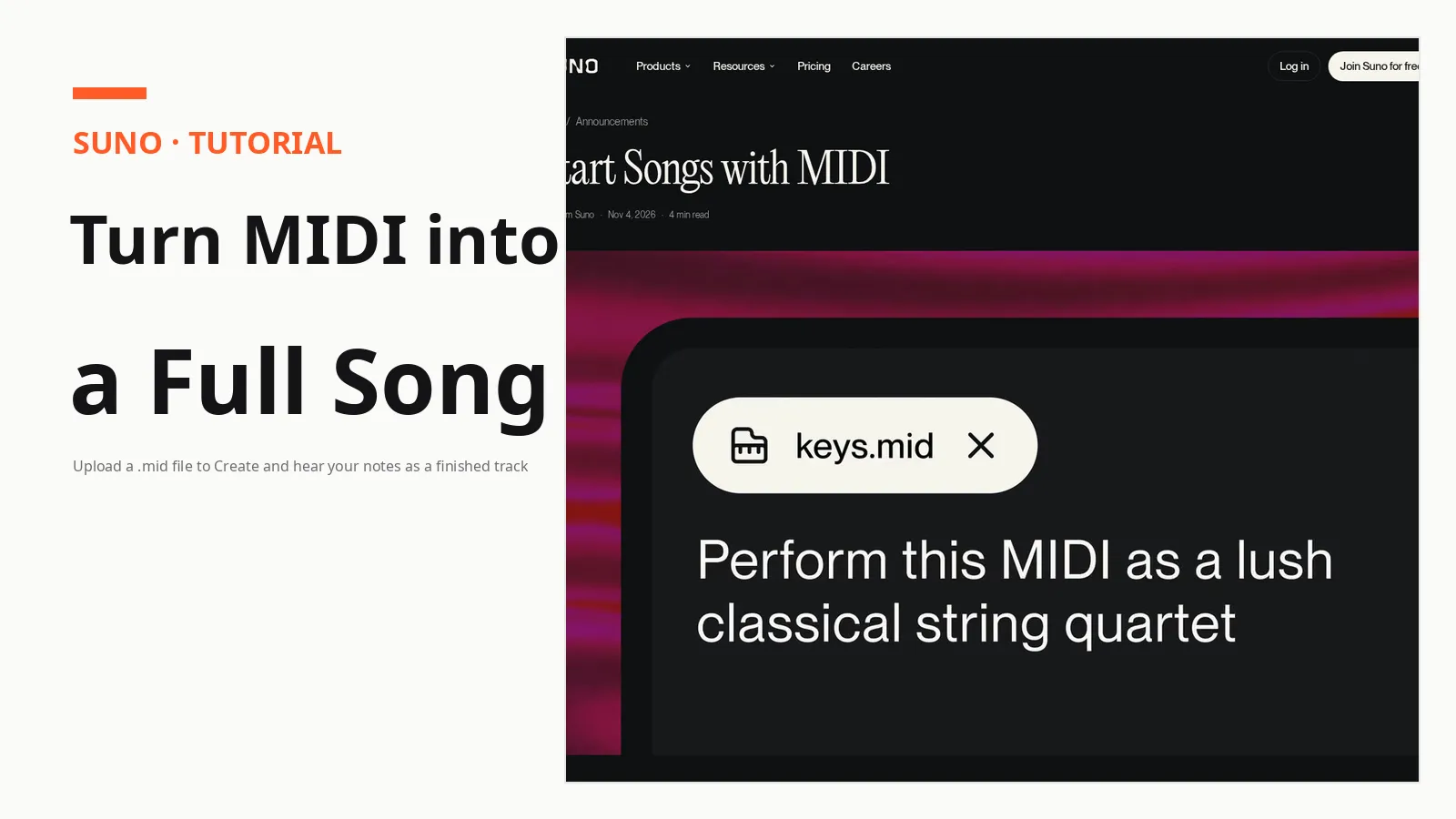
On November 4, 2026, Suno added a new starting point to its Create page: a MIDI file. Pro and Premier subscribers can now drag a .mid or .midi file onto Create, describe what should happen to it in plain language, and hear their own notes come back as a finished song. It is the first time Suno's main creation flow accepts a file that contains no sound at all, only the notes themselves.
That distinction matters. Until now, Suno began with words or recorded audio: a text prompt, a hummed tune, an uploaded WAV or MP3. A MIDI file is different. It holds the exact notes, timing, and chord progression of a musical part, so the model starts from your composition instead of guessing one from a sentence. This guide walks through the upload, the prompts that make it work, the cost, and the limits Suno states at launch.
What a MIDI file gives Suno that a prompt cannot
A MIDI file contains no audible information. It is a lightweight data format that records notes, rhythm, and expression: up to 16 channels of pitch and timing data, with as many as 120 controller lanes per channel for modulation, volume, and sustain. Because the file spells out the notes, Suno describes it as a more precise starting point than any other input in Create.
After the upload, the prompt decides how literally Suno treats the material. You can ask the model to play the notes exactly as written, to take a top-line motif and develop it into new ideas, or to keep the notes and chord progression while changing the instrumentation entirely. Suno's own examples show the range: arrange a MIDI file for a full orchestra with strings, brass, woodwinds, and percussion; turn it into a gospel choir with piano accompaniment; or render it as a string quartet using the notes and chord progressions exactly as they appear in the file.
One caveat from Suno's Help Center is worth knowing before you upload. The file provides a musical idea or pattern for Suno to use as inspiration; it does not act as a precise instruction to reproduce the audio or exact timing from the file. In practice, "play it exactly" is a direction to the model, not a guarantee, so treat the first generation as a draft.
Suno is the AI music generator behind the feature. It turns text prompts, audio uploads, and now MIDI files into complete songs with vocals and instrumentation, and it runs the MIDI workflow in Simple Create mode on its v6-wild model at launch.
What you need before you start
Three things have to be in place. First, a paid plan: MIDI upload is available to Pro and Premier subscribers only, and the free plan is not included. Second, desktop web: Suno's Help Center states that MIDI upload is available on desktop web, with no mention of the mobile apps. Third, a MIDI file in .mid or .midi format.
If you do not have a MIDI file yet, the easiest sources are tools you may already use. Notation software such as MuseScore can export a finished score as MIDI. A DAW such as BandLab can export a track or a single instrument part the same way. Many sample and loop libraries also sell or give away MIDI files, and any file you already exported from a keyboard or a session will work as long as it ends in .mid or .midi. Before uploading, open the file once and check that the part you want is really in it; a file exported from the wrong track is a common reason the result sounds nothing like the original.
At launch, the feature runs in Simple Create mode with v6-wild, the more experimental of Suno's two v6 models. Suno describes v6-wild as an exploration-oriented counterpart to the precise flagship v6, producing less predictable and more varied results. Suno says it plans to expand MIDI capabilities over time, but it has not said when Custom mode, where you write your own lyrics and styles, will get MIDI.
Upload a MIDI file to Suno in four steps
The workflow itself is short. Suno's Help Center lists it as a small sequence, and the blog post demonstrates the same flow.
- Open the Create page on Suno in a desktop web browser, and make sure you are signed in to a Pro or Premier account.
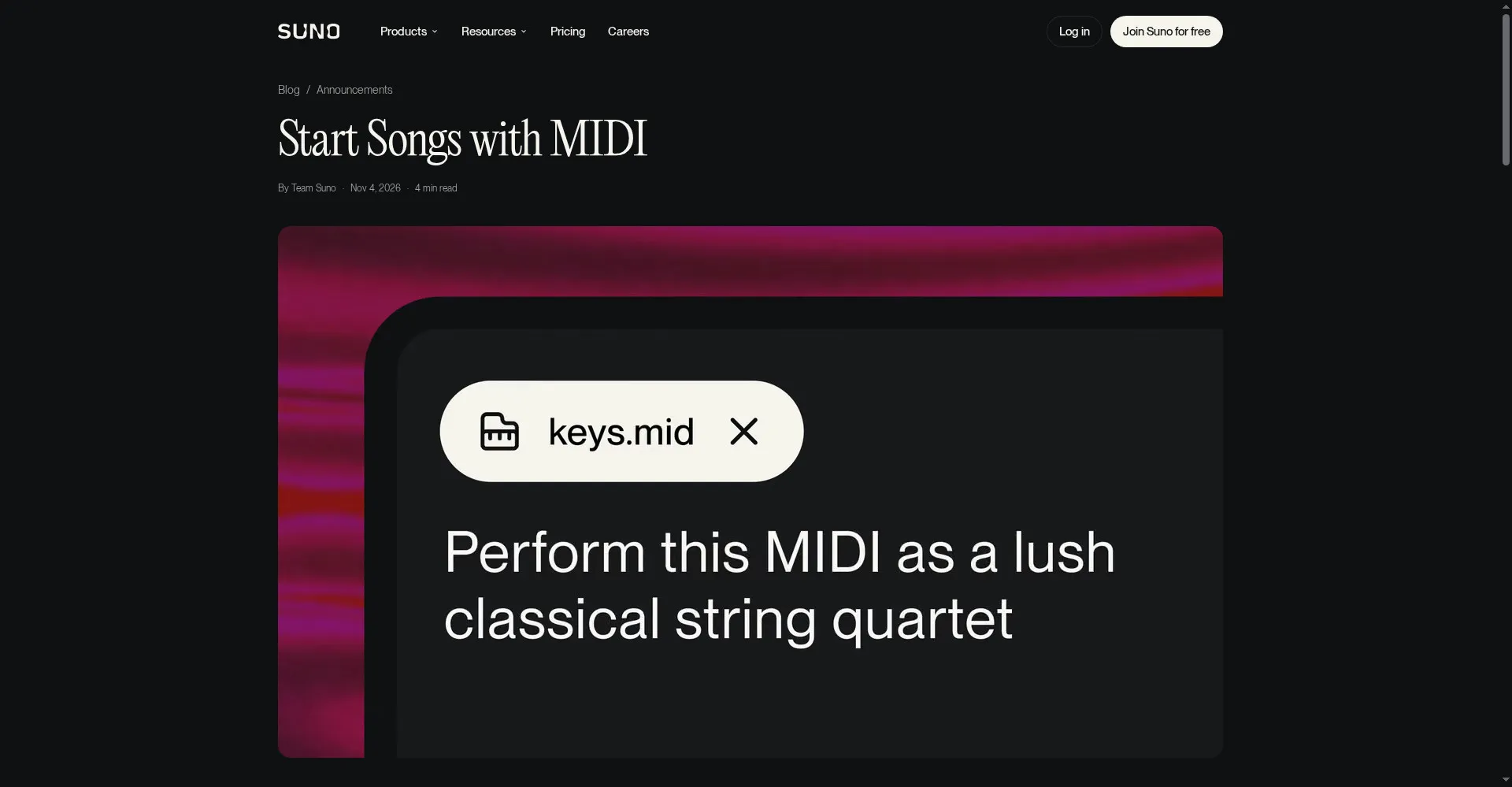
- Drag your .mid or .midi file onto the Create page, or open the + menu and choose MIDI. You can also click upload or drop the file directly into the composer. The file appears as an attachment, with its name shown in a pill above the prompt box.
- Write a natural-language prompt describing what Suno should do with the file. Name the outcome you want: follow the notes exactly, develop the motif, or re-orchestrate it. The prompt is where the musical decisions live, so be specific about genre, instruments, and mood.
- Generate and listen. Suno returns a full track built from your notes. If the melody is right but the sound is wrong, keep the same file and change only the prompt; if the notes themselves are wrong, fix the MIDI file at the source and upload it again.
Keep the first attempt small: a single clear part, such as a piano melody or a chord progression, gives the model less to misread than a dense multi-track export.
Three prompts that show what MIDI can do
The prompt is the control panel. Three patterns cover most of what the feature is good for, and each one is a real example from Suno's launch post.
Hear a score as written. Ask Suno to perform the file exactly as a specific ensemble: "Transform this MIDI into a string quartet. Use the notes and chord progressions exactly as they appear in the MIDI file." This is the use case for composers, students, and band leaders who want to audition a work in progress with generated instrumentation instead of a flat piano rendering.
Develop a motif into a song. Give Suno a short idea and let it build: "Take the top line motif from this MIDI and develop it into new ideas." A two-bar melody becomes a verse, a chorus, and an arrangement, with the original notes still audible underneath.
Change the instrumentation, keep the music. Swap the sound while keeping the structure: "Arrange this MIDI for a full orchestra, with strings, brass, woodwinds and percussion." A synth line from an old session can become a string quartet, and a piano sketch can become a gospel choir with piano accompaniment, with the notes and chord progression unchanged.
Remember that the file carries the music and the prompt carries the instructions: name the ensemble, the genre, and how closely the notes should be followed.
What it costs, and the limits to know
MIDI upload is a paid feature, and the two plans that include it differ mainly in credits and in Studio access. Prices below are from Suno's pricing page, checked on November 7, 2026.
| Plan | Monthly billing | Annual billing | Credits |
|---|---|---|---|
| Free | $0 | $0 | 50 credits a day |
| Pro | $10 a month | $8 a month, billed $96 a year | 2,500 credits a month |
| Premier | $30 a month | $24 a month, billed $288 a year | 10,000 credits a month |
Pro is the cheaper way in: it includes MIDI in Create and access to the advanced v6 and v6-wild models. Premier adds Suno Studio, the browser-based workstation with a timeline, MIDI import, recording and editing, effects, and automation, plus 60 song downloads a month. Studio 2.0, the update that added MIDI import, recording, and editing to the workstation, arrived on August 13, 2026, and Studio remains a Premier feature. Downloads on Pro and Premier come with commercial rights, while songs made on the free plan cannot be used commercially.
The limits at launch are narrow and clearly stated. MIDI upload works in Simple Create mode only, on v6-wild only, on desktop web only, and only on Pro and Premier. Neither the launch post nor the Help Center article states a file size, length, or track-count limit for uploads. There is also a limit built into the format itself: even a carefully programmed MIDI file cannot express every articulation or timbre adjustment, so some performances will still need a real instrument or a DAW to finish.
After the first generation
Treat the first result as a sketch. If the arrangement is close, generate a few variations of the same file with small prompt changes: one with a different ensemble, one with a looser instruction to develop the motif, one that holds the notes exactly. Compare them before deciding which direction to keep.
On Premier, the natural next step is Suno Studio, where the same MIDI file can be imported onto the timeline to record, edit, and build on instead of starting over from a prompt. If you are on Pro, the loop is simpler: refine the prompt, regenerate, and keep the version that best serves the song.
The feature will matter most to people who already have music written down: composers with scores, producers with old sessions, teachers with student work. For them, Suno stops being a machine that invents a song from a sentence and becomes a way to hear something they already wrote, played back by an orchestra they do not have. Start with one file, one clear prompt, and a single part you know well. The notes are yours; the arrangement is the experiment.
Sources
- Suno official blog — suno․com
- Suno Help Center — help․suno․com
- Unite.AI — unite․ai