
How to Build a Landing Page with Typeform AI Landing Pages
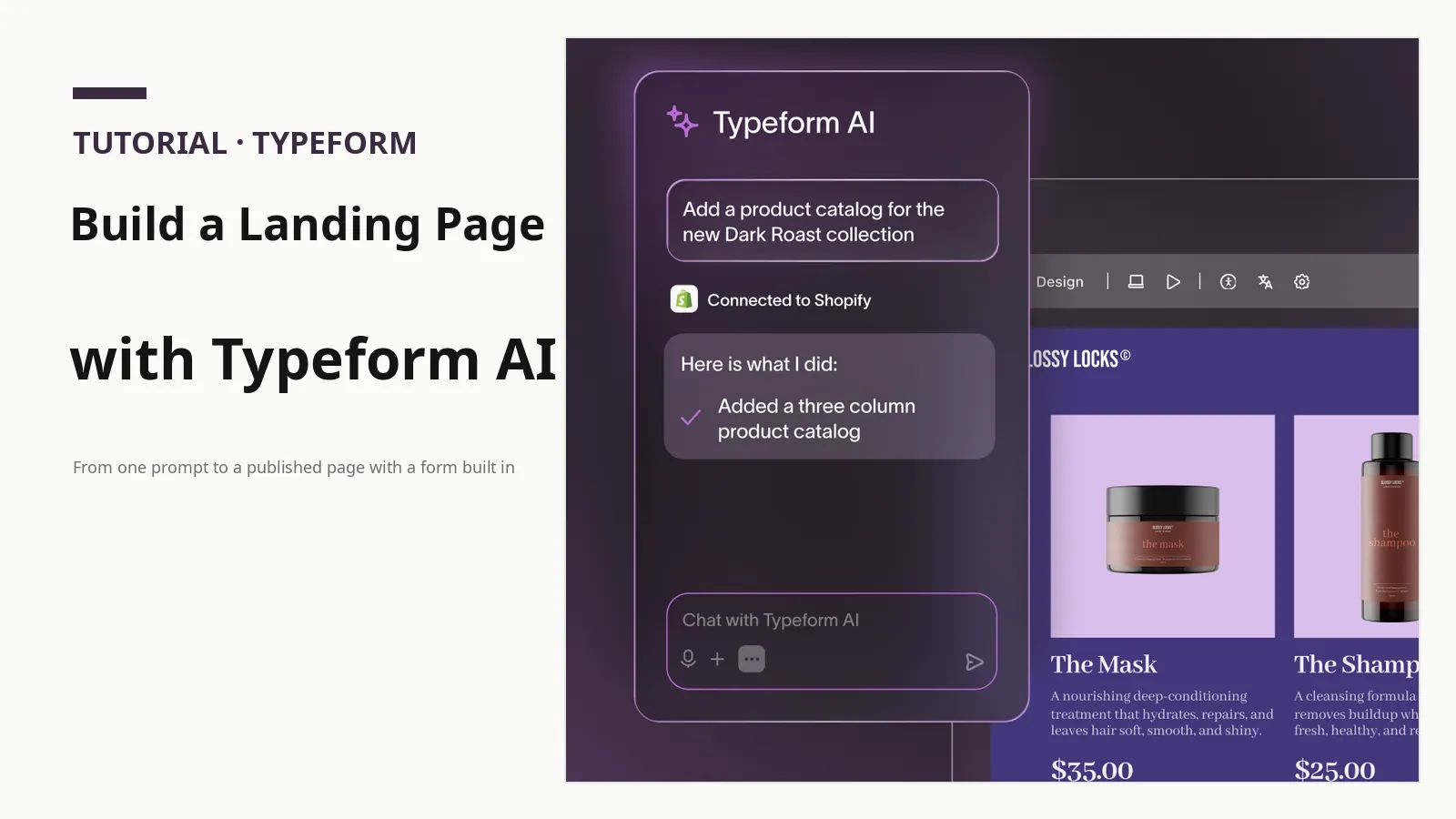
Most landing pages fail before anyone reads them. Not because the offer is weak, but because building the page takes so long that the offer never gets tested: one tool for the page, another for the form, a spreadsheet for the responses, and a separate automation to follow up.
Typeform AI Landing Pages, announced on October 6, 2026, tries to collapse that stack into a single conversation. You describe the page you want, Typeform AI drafts it, and the form is already part of the page rather than an embed you have to wrestle into place. This guide walks through the workflow, from your first prompt to a published page that is actually collecting responses, and it is honest about the edges of a beta product. It assumes you want one small, real page live this week: a waitlist, an event signup, or a quote request. That is the right first test for this tool.
Check first whether Pages is turned on for you
AI Landing Pages is in beta and rolling out gradually, so the first step is not writing a prompt. It is checking whether your account has the feature at all. Sign in to Typeform and look for the Pages option in your workspace. Typeform's own help documentation warns that if you do not see the option to create a page, it is not enabled for your account yet.
If it is missing, do not rebuild your plan around it. The feature is included on every plan, including the free plan, once it is enabled, so this is a rollout question rather than a paywall question. Check back in a few days.
This is a page builder for a single goal, not a full website builder. If you need a multi-page site with a blog and a shop, a traditional builder is still the better choice. If you need one polished page that captures responses, the conversational route is faster.
Step 1: Write a prompt that names one goal
Open the Pages builder and you will find a chat box. That chat box is the builder: no blank canvas, no toolbar to learn first. That is both the appeal and the trap, because a vague prompt produces a vague page.
A good first prompt contains four things. First, the single goal: waitlist signup, event RSVP, quote request, or newsletter signup. Second, the audience and the offer in one sentence. Third, the form fields you actually need, and nothing else. Fourth, a brand direction: colors, mood, or a reference to your existing brand.
Typeform's own product page shows the pattern well. A coffee business asks for a page to collect signups for its barista classes, and the builder produces a page for that course, with a headline, an image, and a registration button. Notice what that prompt does: it names the business, the offer, and the action in a single sentence, not three offers and two audiences at once.
Try a prompt shaped like this, swapping in your own details: "Build a waitlist page for my free online photography course for beginners. Ask for name and email only. Use a calm, minimal style with dark blue and warm gold." Then stop, and let the first draft arrive before you start fixing it.
Step 2: Refine the draft in two or three rounds
Your first draft is a starting point, not a final product. Refine the page the same way you created it: by chatting. Ask the AI to shorten the headline, move the form higher, change the button color, add a short section answering the most common question, or rewrite the copy in a friendlier tone. You can also edit blocks directly, and mix both approaches.
Plan on two or three refinement rounds, and read the page out loud after each one as if you were a first-time visitor. Is it obvious what the page offers within five seconds? Is the next step, the form or the button, impossible to miss? Fix whatever you find with one more chat message.
Step 3: Add a form that matches the goal, and keep it short
A landing page without a form is just a poster, and this is where Typeform's approach earns its keep. You can embed a form you already built, or ask Typeform AI to build a new one tailored to the page's goal. Because form and page are built in the same system, you skip the sizing and responsiveness problems of pasting a third-party form onto a page.
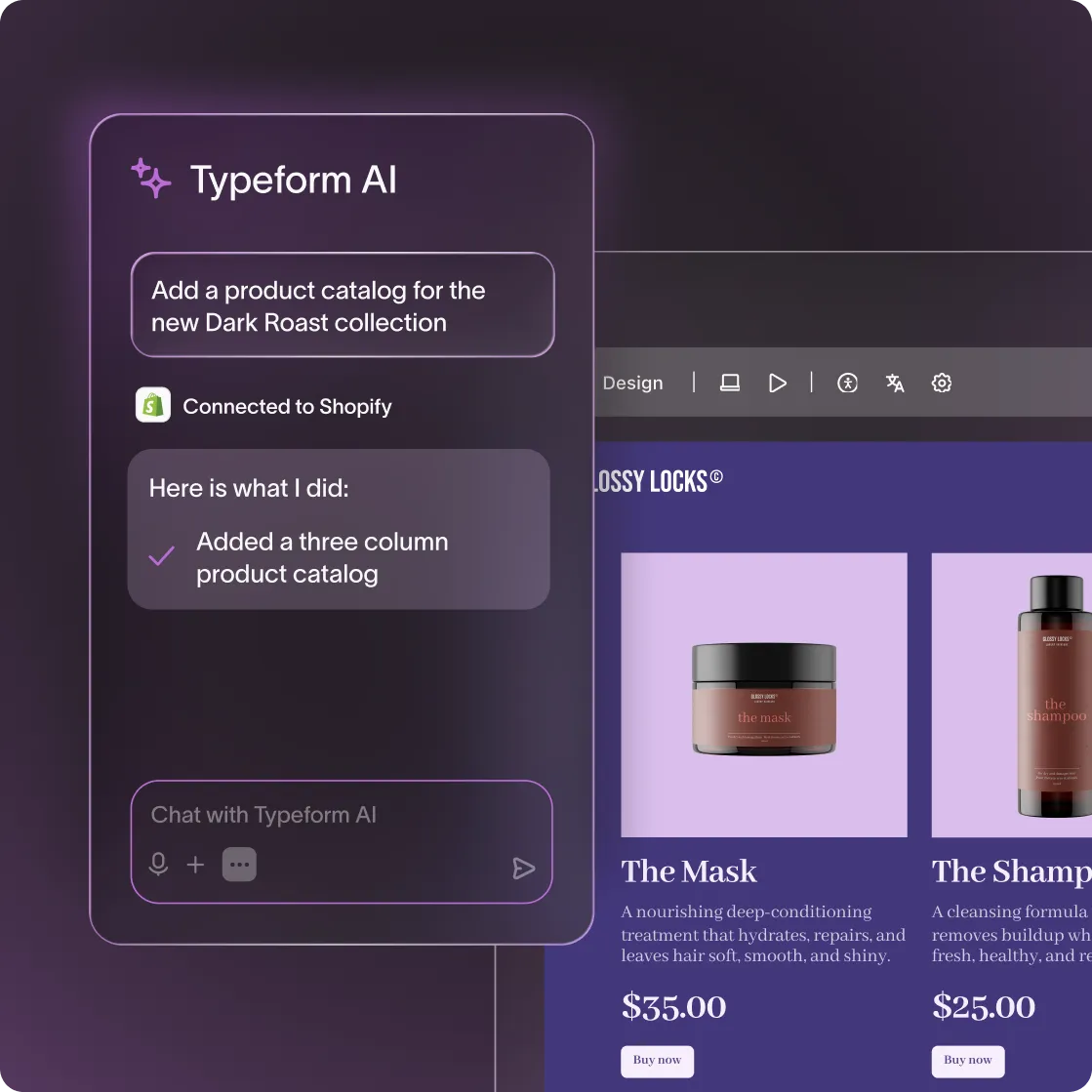
Keep the form short. Every extra field costs you completions, so ask only for what you truly need to follow up. For a waitlist, name and email are usually enough. For a quote request, add one qualifying question, such as budget range or timeline, and stop there. Use the conversational format, one question at a time, which feels lighter than a long static form. Typeform says its native forms collect 3.5 times more data than static forms; treat that as a company claim, not a guarantee, and judge your own page by its completion rate.
End the form with a clear thank-you screen that tells visitors exactly what happens next, for example when they will receive a download link. "Thanks for signing up" is not a next step.
Step 4: Make the page look like yours, then set its search details
The AI draft usually gets the structure right and the personality only halfway there. Before you publish, make the design unmistakably yours: set your brand colors, upload your real logo instead of a placeholder, choose fonts that match your website, and use your actual product photos where they fit.
The builder also lets you set custom metadata for search and sharing, a page title and description. Write these as if they were the only words a stranger would see: the title should name the offer, and the description should name the action.
Step 5: Publish on the hosted link and test it like a visitor
Publish the page, and for your first page, plan on the Typeform-hosted URL. Typeform's launch announcement says pages can be published using a company domain or a Typeform-hosted URL, but independent reads of its product page in October flagged custom domains as not yet live. Until your own account shows otherwise, treat the hosted link as the real option.
Before you share the link widely, run a final quality pass. Open the page on your phone, submit a test response yourself and confirm it arrives where you expect, and read every word once more, because typos kill trust faster than any design flaw.
Step 6: Work the responses in Contacts, and let connectors do the fetching
Every form submission flows directly into Typeform Contacts, one place to manage the customer information your page captures. Open Contacts regularly, especially in your first week, and look at which questions get skipped and where people drop off. That tells you whether your headline promises the right thing and whether your form asks the right questions.
Reply to quote requests fast. Speed is the single biggest factor in converting a lead, and a page that collects responses nobody answers is worse than no page at all.
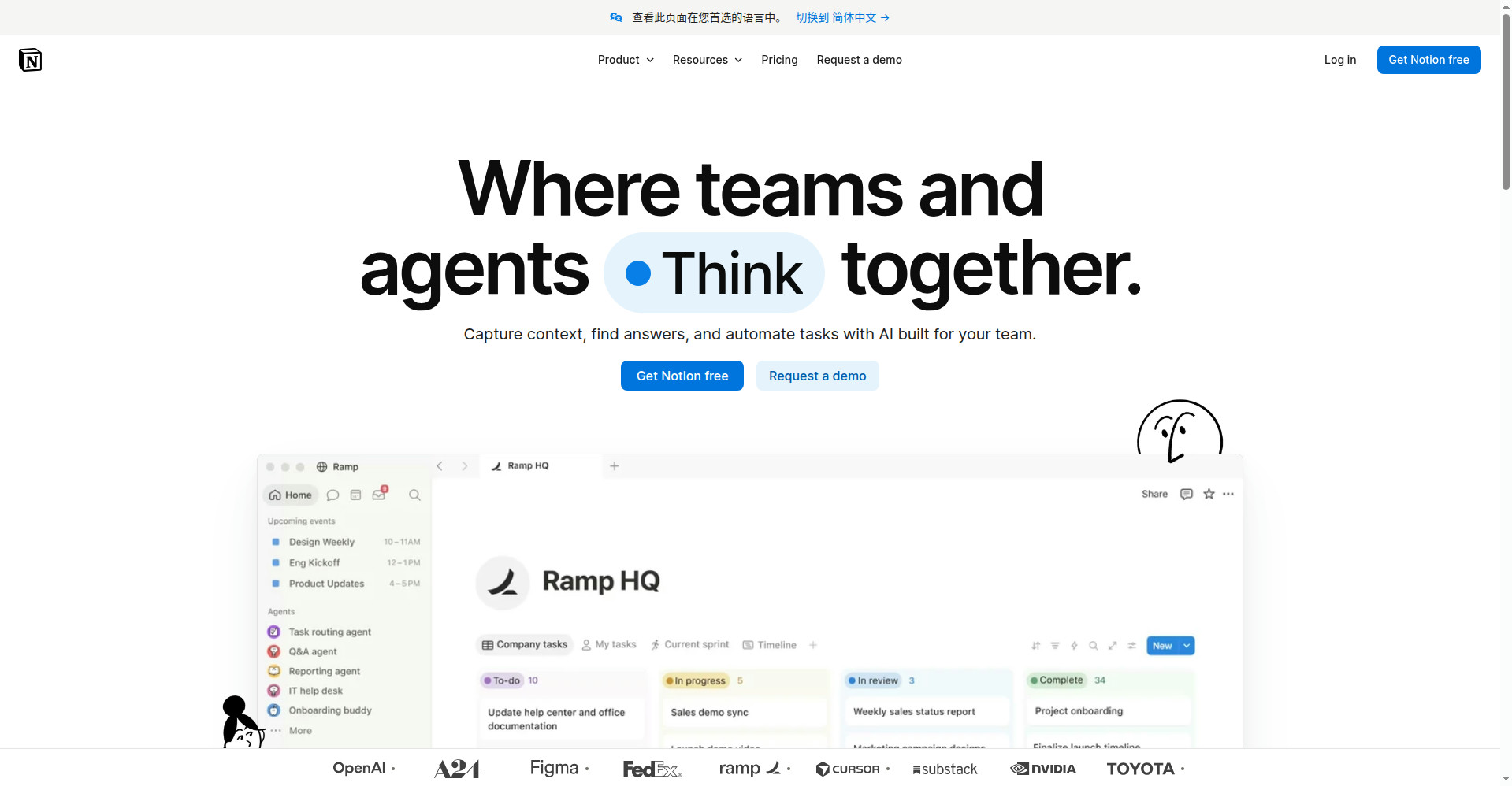
Connectors are the quieter part of the workflow, worth setting up before your second page. Typeform Connectors let the AI pull context from tools you already use while it builds a page. Notion can supply the notes and product details your page copy should reflect, so you are not retyping them into a chat box. Canva AI can supply the brand assets and visuals that keep the page consistent with the rest of your marketing. Connect the one source that holds the facts your page must get right, and add more only when a real page needs them.
Step 7: Measure without a dashboard, and improve one thing at a time
Built-in analytics covering visitors, traffic sources, and bounce rate are listed as coming soon in Typeform's own launch announcement, so your first page has no dashboard to check. That is a real limitation, but not a reason to fly blind. Add UTM parameters to the links you share, so you can tell which channel sent each visitor, and watch your form's response stats: submissions you can count, and a completion rate you can calculate.
Share the link with a small group first, such as friends, your email list, or a relevant community, and watch the first twenty to fifty visits closely. If visitors arrive but do not submit, your headline or offer probably needs work, so ask the AI chat to rewrite it. If they start the form but do not finish, your form is too long, so cut a field. Change one thing at a time, and watch the next batch of responses before changing the next thing.
The honest summary is this: Typeform AI Landing Pages is genuinely fast for one specific job, turning a single goal into a branded page with a working form, and genuinely unfinished around the edges, with gradual beta access, no custom domain to rely on yet, and no built-in analytics. Use it for a small page you can publish and test this week. The best first page is the smallest real goal you have, built, published, and improved from real responses.
Sources
- Typeform launch announcement — prnewswire․com
- Typeform AI Landing Pages beginner guide — aitoolsteps․com
- Typeform AI Landing Pages market analysis — buzzriding․github․io