
How to Use Google Photos' New Redact Pen and Moods: A Practical Guide
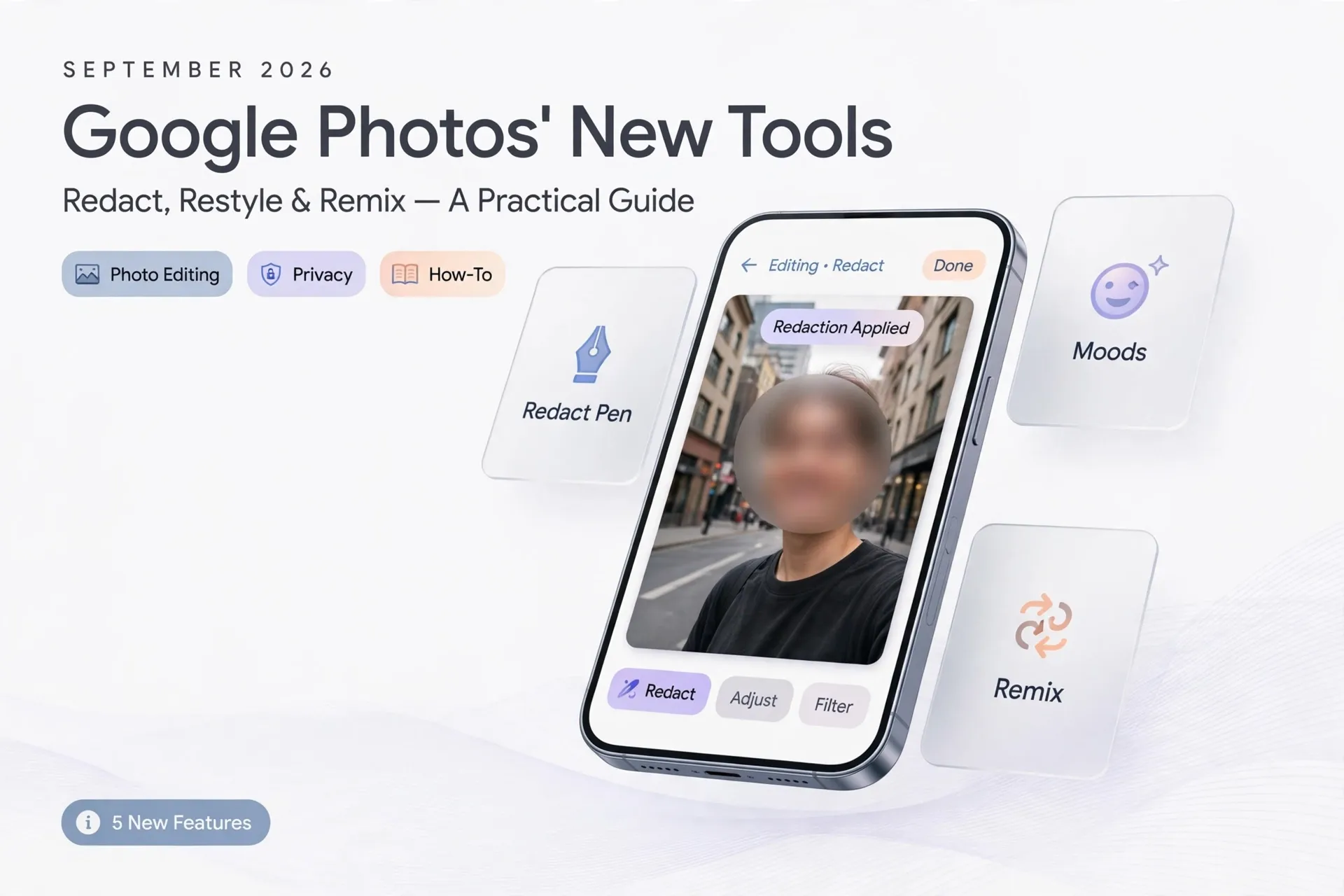
Sharing a screenshot with your address visible, or a photo with a stranger's license plate in the background, is a small mistake that can travel far. On September 24, 2026, Google Photos product manager Simon Li announced five new features that directly address this kind of everyday photo problem — headlined by a dedicated Redact pen in the Markup tool and a new set of adaptive Moods styles. Below is a practical walkthrough of what changed, how to use each feature, and where the rollout catches you may hit.
What Google announced this week
Google's five-feature drop for Google Photos covers privacy, style, and organization in one update:
- Upgraded Markup tool — a new Redact pen for blurring sensitive information, precise thickness sliders, and new fonts for the Text tool.
- Moods — AI-assisted, vintage-inspired styles (35mm film, 2000s digicam looks) with intensity sliders, rolling out globally on Android.
- 15 new Remix templates — red-carpet moments, birthday cards, photo booth shots, available in select countries on Android and iOS for users 18 and older.
- Wardrobe — automatically catalogs clothing visible in your photos into a digital closet, with virtual outfit styling; now available to eligible users in the US, India, and Brazil on Android and iOS.
- Photos in Gemini Spark — a single prompt can select, brighten, and prepare family portraits for sharing; limited to eligible Google AI Pro and Ultra subscribers in the US.
Availability is fragmented by platform, country, age, and subscription — check the table at the end before hunting for a missing button.
Step 1: Redact sensitive details with the new Redact pen
The Redact pen is the most practically useful addition: instead of scribbling over text with the old markup pen (which could leave things semi-legible), it applies a proper blur/pixelation.
- Open the photo in Google Photos and tap Edit.
- Select Markup (the pen icon). You should see a new Redact pen option alongside the existing pen and highlighter.
- Choose the Redact pen and drag the thickness slider to match what you're covering — wider for a document paragraph, narrow for a phone number.
- Draw or swipe over the sensitive area: names, addresses, ID numbers, license plates, QR codes.
- Preview the result at full zoom to make sure nothing is readable through the blur.
- Tap Save as copy. Edits are applied to a copy, so your original stays untouched — and Google says new albums default to private.
Who this is for: anyone who shares screenshots, rental listings, or event photos and routinely strips out personal details first. It's faster than opening a third-party editor and lives in the app your photos already sit in. Real-estate agents masking unit numbers on listing photos, sellers blurring serial numbers on marketplace shots, and parents removing school names from shared pictures all get a one-tap workflow instead of a detour into another app.
Making redactions actually stick
A blur is only as good as what it fully covers. After applying the Redact pen, zoom to 100% and check the edges of the blurred region — thin borders around a blurred box can leave a digit or letter peeking out. Avoid redacting with the minimum thickness on high-resolution images: a 2,000-pixel-wide screenshot of a chat log needs a wider stroke than a thumbnail-sized preview suggests, because the blur is relative to the stroke width. And remember that redaction only protects what's exported: if you share the unedited original from your camera roll or a backup elsewhere, the redaction on the copy does nothing. Double-check which version you attach before sending.
Limitations: as of publication, the upgraded Markup tool is rolling out globally on Android only — iOS users should check for the update but may still be waiting. Rollouts are staggered, so the pen may not appear even on current app versions.
Step 2: Apply a Mood instead of a filter
Moods are not conventional filters. Google says each Mood "intelligently adapts" to the image rather than applying a fixed overlay, aiming for nostalgic looks like 35mm film or early-2000s point-and-shoot cameras.
- In the editor, open the Moods section.
- Browse styles such as Crisp 35mm (film), 2000's night (digicam), Retro contrast, Night light, Blue Haze, and Rich textures — style names per 9to5Google's coverage of the update.
- Tap one, then use the intensity slider to dial it from subtle to strong.
- Save as copy and compare before/after in your library.
Because the effect adapts per image, results vary more than with classic filters — try two or three Moods on the same photo before committing. Portraits, night shots, and daylight landscapes each react differently to the same style, so a Mood that flatters one image can wash out another. The intensity slider is the real control here: pulling it back to the 30–50% range often keeps the nostalgic grain while preserving skin tones and legibility.
Step 3: Try Remix templates for quick creative edits
The 15 new Remix templates turn ordinary shots into themed creations — red-carpet portraits, whimsical birthday cards, photo booth strips. To use them:
- Open a photo and look for Remix in the editor (or the Create tab, depending on your app version).
- Pick a template and let it generate the composition.
- These are available on Android and iOS in select countries, for users 18 and older — age and region gating is the most likely reason a template list looks empty.
Step 4: Let Wardrobe build a digital closet (if it's available to you)
Wardrobe catalogs the clothes visible in your photo library into a browsable collection, so you can view garment types and try new combinations, including virtual try-ons. Google notes wardrobe-related data is not shared with third parties such as retailers — a claim worth knowing since it touches your photo library's most personal metadata. It's currently limited to eligible Android and iOS users in the US, India, and Brazil.
Step 5: Use Photos in Gemini Spark (US Pro/Ultra only)
If you subscribe to Google AI Pro or Ultra in the US, Gemini Spark can now work with your Photos library directly: one prompt can have it find suitable family portraits, brighten them, and prepare them for sharing. Google emphasizes that Spark asks for explicit consent before sharing — still, review any collection with sensitive images before enabling the integration.
Availability at a glance
| Feature | Platform | Region | Notes |
|---|---|---|---|
| Upgraded Markup tool (Redact pen) | Android | Global rollout | Includes thickness sliders, new fonts |
| Moods | Android | Global rollout | Intensity sliders; adapts per image |
| Remix templates (15 new) | Android + iOS | Select countries | Users 18+ |
| Wardrobe | Android + iOS | US, India, Brazil | Eligible users |
| Photos in Gemini Spark | Android + iOS | US only | Google AI Pro/Ultra subscribers |
Who should care — and what to watch
This update is best for privacy-conscious sharers and casual editors who never installed a dedicated photo editor. The Redact pen fills a real gap in the stock Android toolkit, and Moods give Google's editor a distinctively 2026 flavor.
Three caveats to keep in mind: first, rollouts are staggered — features may appear days or weeks apart even on identical devices. Second, the most ambitious integrations (Wardrobe, Gemini Spark) are the most gated, by region and subscription. Third, vendor claims here — "intelligently adapting" styles, blur quality, privacy defaults — are Google's descriptions; treat them as such until you've tested them yourself.
For Google Photos users, the practical move this weekend is simple: update the app, check the Markup tool for the Redact pen, and run one screenshot through it before your next share.
References
- 9to5Google, "Google Photos rolling out Redact tool, Mood filters, & more" (Sep 24, 2026): https://9to5google.com/2026/09/24/google-photos-redact-moods/
- Gadgets360, "Google Photos Update Brings Redact Tool, Moods and AI Wardrobe" (Sep 25, 2026): https://www.gadgets360.com/apps/news/google-photos-update-redact-tools-moods-ai-wardrobe-roll-out-12097803
- FoneArena, "Google Photos gets new updates including Moods, Wardrobe and 15 new Remix templates" (Sep 25, 2026): https://www.fonearena.com/blog/493403/google-photos-moods-wardrobe-new-remix-templates.html