
How to Edit Photos and PDFs Inside ChatGPT with Adobe's New Interactive Editing Tools
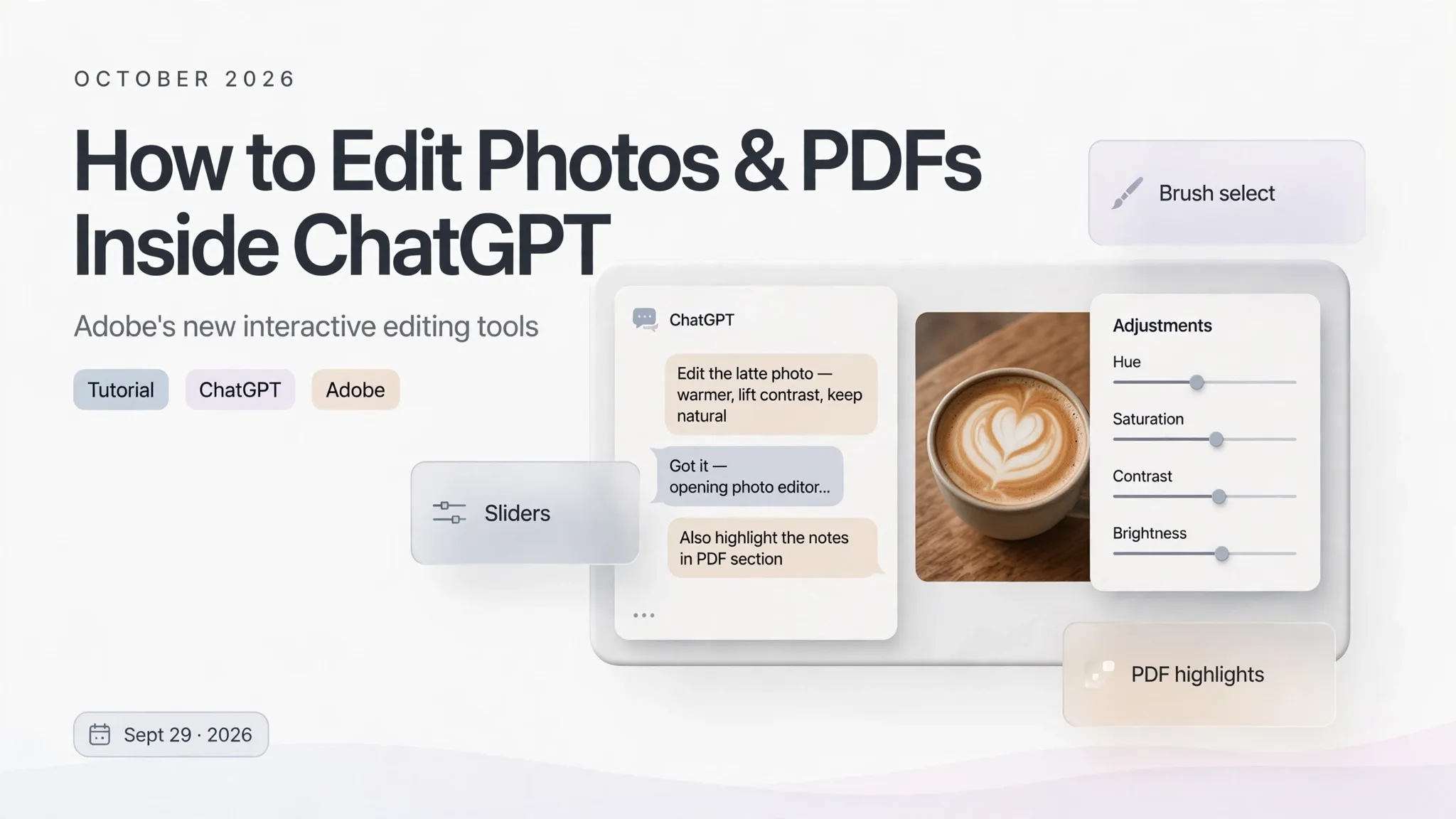
Until recently, editing a photo or a document inside ChatGPT meant typing out instructions and hoping the result matched what you pictured in your head. On September 29, 2026, alongside OpenAI's DevDay 2026 announcements, Adobe rolled out a fix for that exact frustration: interactive editing controls inside the Adobe plugin in ChatGPT. You can now select part of an image, ask ChatGPT to make the edit, and then fine-tune the result yourself with on-screen sliders — for hue, saturation, contrast and more — without ever leaving the conversation. PDFs get the same treatment: you can revise text and highlight passages directly inside the chat window using Acrobat tools.
This guide walks you through what the update adds, how to set up the plugin, and two step-by-step workflows you can run today — one for photos, one for PDFs.
What Adobe actually launched
The new experience ships as an update to the Adobe plugin in ChatGPT, the connector that gives ChatGPT access to Adobe's creative and document tools. The plugin gains interactive editors for images, designs and PDFs that open in side panels inside the ChatGPT window, so you can move between describing an edit in words and making hands-on adjustments, with the two staying in context with each other.
A few concrete details, verified from Adobe's official announcement:
- Rollout: the updates started rolling out globally on September 29, 2026, on ChatGPT web and the ChatGPT app. If you don't see them yet, check back — global rollouts arrive in waves.
- What powers what: the image and design editors run on Adobe Photoshop and Adobe Express; the PDF editor uses Acrobat tools, so a mention of Acrobat on the site's Adobe Acrobat page applies to the same workflow.
- Context flows both ways: an edit you request in the chat shapes the editor that opens, and adjustments you make by hand feed back into the conversation as context. You never have to re-upload a file or re-describe what you already did.
- The editor is smart about controls: it surfaces different controls depending on the edit. Ask to change the color of an object and you get color controls scoped to just that selection, rather than a generic full-image filter.
The idea, in OpenAI's framing, is to take users "from an idea to work they're ready to use or share, with control over the details along the way," according to Vibhor Chhabra, product lead for ChatGPT Ecosystem at OpenAI.
What you need before you start
- A ChatGPT account. The plugin lives inside ChatGPT on web or the app, so start there.
- The Adobe plugin enabled. In ChatGPT, open the plugins or connected-apps section and enable the Adobe plugin — Adobe has unified its creative and productivity tools into a single plugin experience, so one toggle covers the image, design and PDF tools. Adobe notes the same unified plugin also appears in Claude and Slack, but the new interactive editors are a ChatGPT feature for now.
- A file to work on. The fastest way to see the feature is to start a chat and attach a photo or PDF, then ask ChatGPT to open it with the Adobe plugin.
One honest caveat: because this is a fresh rollout, the exact labels of buttons and panels may shift slightly over the coming weeks. The workflow below follows the mechanics Adobe documented, not pixel-perfect button names.
Walkthrough 1: clean up a product photo in ChatGPT
This is the scenario Adobe itself uses to demonstrate the feature — a lifestyle photo of a latte on a coffee table, intended for a social post, with a stray napkin in the shot. It's also exactly how a marketer would use it in practice: the AI does the heavy lifting, you do the final polish.
Step 1 — Open the image in the side panel. Upload your photo to ChatGPT and ask for the Adobe plugin to open it in the interactive editor, which appears in a side panel next to the conversation.
Step 2 — Select the distraction. Brush over the object you want gone and tell ChatGPT, in the chat, to remove it. The plugin handles the generative fill, and the result stays attached to your conversation.
Step 3 — Refine with your own hands. Re-select the latte cup and ask ChatGPT to adjust its brightness and contrast. Instead of another AI-generated guess, the editor surfaces real sliders, scoped to your selection. Drag them until the cup looks the way you want.
Step 4 — Keep going without repeating yourself. Because your edits flow back into the chat as context, you can now type something like "make the whole image a little warmer" and ChatGPT knows the current state of the image — the removed napkin, the brightened cup — without you re-explaining any of it.
The pattern is worth internalizing: use words for the hard, generative steps (removal, recoloring an object), and use your hands for the subjective finishing moves (how bright, how saturated). Prompting gets you 80% of the way; sliders get you the last 20% that a prompt could never express precisely.
Walkthrough 2: review and annotate a PDF without leaving the chat
The same update gives PDFs a hands-on editor powered by Acrobat tools. Documents are where context continuity really pays off.
Step 1 — Open the PDF in the side panel. Attach your document and ask ChatGPT to open it with the Adobe plugin. You can revise text directly in the document and highlight passages yourself, in place, instead of moving to a separate workspace.
Step 2 — Edit or annotate by hand. Click into the text and revise it, or highlight a passage the way you would in a PDF reader. You're looking at the actual document, not a chat summary of it.
Step 3 — Turn selections into conversation. Here's the clever part: what you select in the PDF becomes context for the chat. Adobe's example is a freelance contract review — highlight the paragraph about payment terms, then ask ChatGPT to use the Adobe plugin to find and highlight the other sections about payments or invoicing. Acrobat's highlight tool marks those passages in the document, so you can review the related terms together and check they're consistent.
Step 4 — Ask follow-up questions grounded in the document. Since the document context travels with the conversation, you can now ask things like "do any two clauses contradict each other on payment timing?" and get answers grounded in the text you just marked up.
This workflow compresses what used to be three separate steps — open the PDF in a reader, copy passages into the chatbot, paste answers back — into one surface.
Who benefits most from this update
- Social media managers and small business owners. Product and lifestyle shots for posts rarely need a full Photoshop session; they need one object removed and one color corrected. Doing that inside ChatGPT, where the post copy is being drafted in the same chat, collapses two tools into one.
- Knowledge workers who live in documents. Contract review, report annotation and document summarization get faster when the document and the conversation share a context — you highlight, the AI reads what you highlighted.
Strengths and limits to know before you rely on it
What's genuinely good:
- No more prompt roulette for fine details. Sliders for hue, saturation and contrast beat writing "slightly brighter, but not too bright" for the fifth time.
- Context never resets. The single biggest workflow win is not re-uploading files or re-explaining work when you switch between chatting and editing.
- Designs are included, not just photos. The image and design editors both run on Photoshop and Adobe Express, so the same chat-plus-editor pattern applies to graphics and layouts.
What to keep in mind:
- It's a fresh rollout. Announced September 29, 2026, with a global rollout in progress — features, availability and exact UI may vary while it lands everywhere.
- It's not a Photoshop replacement. The controls are scoped to targeted edits — a selection here, a slider there. Complex compositing and precision retouching still belong in the full desktop tools.
- Platform scope. The interactive editors are a ChatGPT feature; Adobe's unified plugin also exists in Claude and Slack, but the hands-on editing experience Adobe announced is for ChatGPT web and app.
Getting started in under five minutes
- Open ChatGPT (web or app) and enable the Adobe plugin.
- Upload a photo with an obvious flaw — an unwanted object, dull colors — and ask ChatGPT to open it in the Adobe editor.
- Brush over the object, ask for it to be removed, then use the surfaced sliders to tune brightness or contrast on your subject.
- Separately, upload a PDF you actually need to read, open it with the plugin, highlight a key paragraph and ask ChatGPT to find related passages.
- When the editors aren't visible yet, the rollout simply hasn't reached your account — check again in a few days.
The bottom line
Adobe's interactive editing controls in ChatGPT won't replace your image editor or your PDF reader, and they aren't meant to. They solve a narrower, more annoying problem: the friction of moving between "tell the AI what you want" and "do it yourself with precision." By putting Photoshop, Adobe Express and Acrobat tools behind both a chat interface and a hands-on editor in the same window — with context flowing in both directions — Adobe has made ChatGPT a credible place to finish creative and document work, not just start it.
References
- Adobe Blog, "Introducing interactive editing controls for the Adobe plugin in ChatGPT" (September 29, 2026) — official announcement: https://blog.adobe.com/en/publish/2026/09/29/openai-devday-2026-introducing-hands-on-editing-adobe-plugin-chatgpt
- The Agile Brand Guide, "Adobe Adds Hands-On Editing Controls to Its ChatGPT Plugin at OpenAI DevDay" (September 30, 2026): https://agilebrandguide.com/adobe-adds-hands-on-editing-controls-to-its-chatgpt-plugin-at-openai-devday/
- The Mac Observer, "Adobe Adds Interactive Photo And Document Editing To ChatGPT" (September 30, 2026): https://www.macobserver.com/news/adobe-adds-interactive-photo-and-document-editing-to-chatgpt/
- FoneArena, "Adobe plugin in ChatGPT gets interactive editing controls for images, designs and PDFs" (September 30, 2026): https://www.fonearena.com/blog/493776/adobe-plugin-chatgpt-interactive-editing-controls.html